SSH (Secure Shell) access to Cisco IP Phones is designed primarily for advanced troubleshooting, diagnostics, and maintenance rather than routine administrative tasks.
The main purpose of SSH on Cisco IP Phones is to support diagnostic and technical assistance efforts, providing administrators and engineers with direct access to the phone’s internal systems for resolving issues that cannot be addressed through CUCM (Cisco Unified Communications Manager) or the phone’s native settings.
- Early Models (e.g., 7900 Series): Older Cisco IP Phones, such as the 7940/7960 series running SCCP firmware, typically used “default/user” as secondary SSH credentials after the initial admin login configured in CUCM.
- Newer Models (e.g., 7800, 8800 Series): In more recent models and firmware updates, Cisco has shifted to “debug/debug” as the secondary SSH credentials.
Steps to Enable and Access a Cisco IP Phone via SSH
1. Configure SSH Access in CUCM
- Log into CUCM Administration:
- Open a web browser and go to the CUCM admin portal (e.g., https://<CUCM_IP>/ccmadmin).
- Sign in with your admin credentials.
- Locate the Phone:
- Navigate to Device > Phone.
- Search for the target phone using its MAC address, directory number, or IP address.
- Enable SSH Access:
- Click the phone’s name to access its configuration page.
- Scroll to the Secure Shell Information section and configure:

- Secure Shell User: Set a username (e.g., “admin” or “cisco”).
- Secure Shell Password: Set a password (e.g., “password”).
- In the Product Specific Configuration Layout section , locate SSH Access and set it to Enabled.

- Save and Apply:
- Click Save, then Apply Config.
- The phone may reboot to apply changes. Wait for it to come back online.
- Verify IP Address:
- On the phone, press the Settings button, go to Network Configuration, and note the IP address. Alternatively, check the IP in CUCM under the phone’s status.
2. Connect to the Phone via SSH
- Open Your SSH Client:
- Launch PuTTY or another terminal emulator.
- Enter Connection Details:
- Host: Enter the phone’s IP address.
- Port: Use the default SSH port 22 (unless modified in CUCM).
- Protocol: Select SSH.
- Initiate Connection:
- In PuTTY, click Open, or in a terminal, run ssh <username>@<phone_ip> (e.g., ssh admin@192.168.1.100).
- Authenticate:
- Enter the username and password configured in CUCM (e.g., “admin” / “password”).
- A second login prompt will appear. Common credentials include:
- Newer Phone models (e.g., 7800/8800 series): Username: “debug“, Password: “debug“.
- Older models: Username: “default“, Password: “user“.
- Access the Shell:
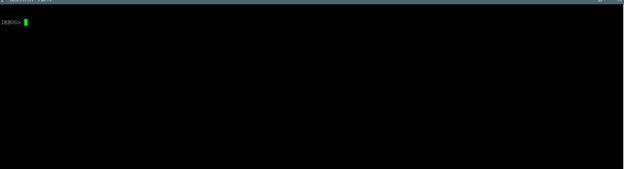
- Upon successful login, you’ll gain access to the phone’s shell interface.
6. Using the Help Command
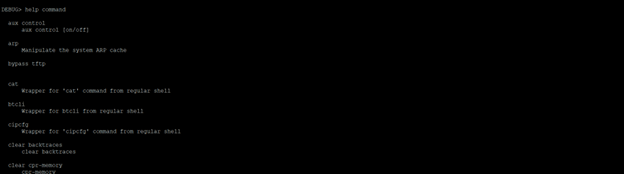
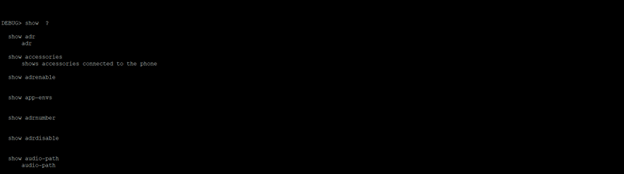
- To explore available commands, type “help command” to display a full list. For specific command details, such as those under “show,” type “show ?” to see all related show commands.
 CRAZY NETWORKING