Have you ever wondered if you ask someone and he can tell you the End of Life (EOL) for Cisco devices without having to search on Google? If you’re using Webex, you can have a bot from the Webex app that provides the End of Sale (EOS) and End of Life (EOL) information when you provide the part number. Even if you don’t know the full part number and only have a few characters from the prt number, you can send it to the bot, and it will give you recommendations based on the partial part number you provided. So, you don’t even need to remember the whole part number.
How can you get it?
- Log in to the Webex app Hub using your Webex login.
- Search for “CiscoEoL”.
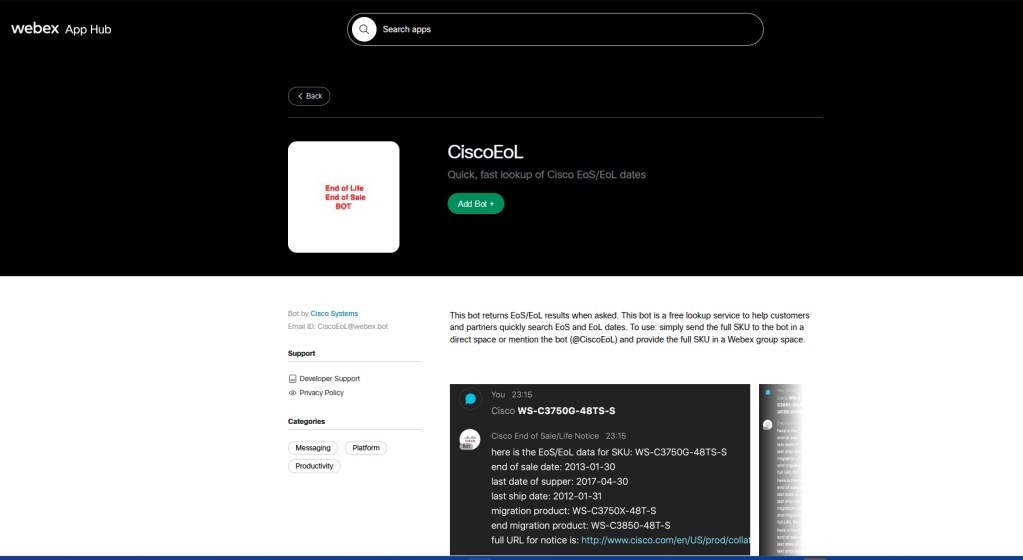
- If you’re logged in, you’ll see the option to add the bot. If not, you’ll need to log in to add the bot.

You can add this bot to a space where other participants are part of it, or it can be a 1:1 interaction. One-to-one is useful when you want to interact directly with the bot, but if you and your colleagues or team members want to get the EOL information, create a space with all the team members and add this bot to the space.
How to use it:
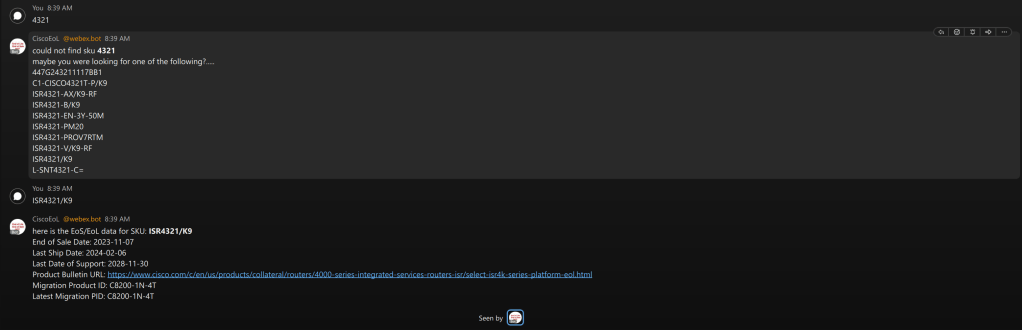
Once added, you can send messages with the full part number or a partial part number. If it’s the full part number, you will get the EOS/EOL information. If it’s only partial, the bot will send recommendations of the SKUs, which you can then copy and send to the bot.
In this example, I wanted to know the EOS/EOL for the ISR4321 router. I simply sent a message with “4321,” and the bot returned a message with recommended part numbers. From those, I chose ISR4321/K9, and the bot provided me with the EOS/EOL dates along with a link to the EOL notice.
How simple it is..
What Bot can do for you:
To find out what the bot can do for you, simply type “help” and send it. The bot will respond with details about its capabilities.

Can i Change the format of the BOT Response:
If you need the response in a different format, you can change it from the settings. To do this, simply send a message with “settings,” and the bot will reply with the available options.
For example, if you want the bot’s response in JSON format, send a message to the bot with “SETTINGS JSON.” The bot will then confirm that the format is set to JSON. Afterward, the bot will provide the EOS/EOL information in JSON format.

You can revert back to text format by sending a message with “SETTINGS TEXT.” However, reverting to the default format didn’t work as expected, and I’ve informed the app owner about this issue. Hopefully, it will be fixed soon.
More options will be introduced soon. Start using it and enjoy!
 CRAZY NETWORKING