Jabber normally comes with User Principal Name (UPN) enabled. This means that Jabber will use the Windows local username to find the user in Cisco UDS. If the user is found in CUCM, Jabber will automatically fill the username in the login window and ask for the password. UPN enabled Jabber does not allow the user to change the username.
To disable UPN, you can do one of the following:
Install Jabber from CLI with UPN disabled:
msiexec.exe /i CiscoJabberSetup.msi UPN_DISCOVERY_ENABLED=false CLEAR=1
Remember, you need to be in the folder where the jabbersetup.msi file is located. Go to that folder on CMD and run the command
For existing Jabber installation, edit the bootstrap file:
1) Open a text editor such as Notepad++ with administrator permissions. You can do this by right-clicking the text editor and selecting “Run as administrator”. Then click “Yes” on the user account control window that pops up.
2) Open this file:
C:\ProgramData\Cisco Systems\Cisco Jabber\jabber-bootstrap.properties
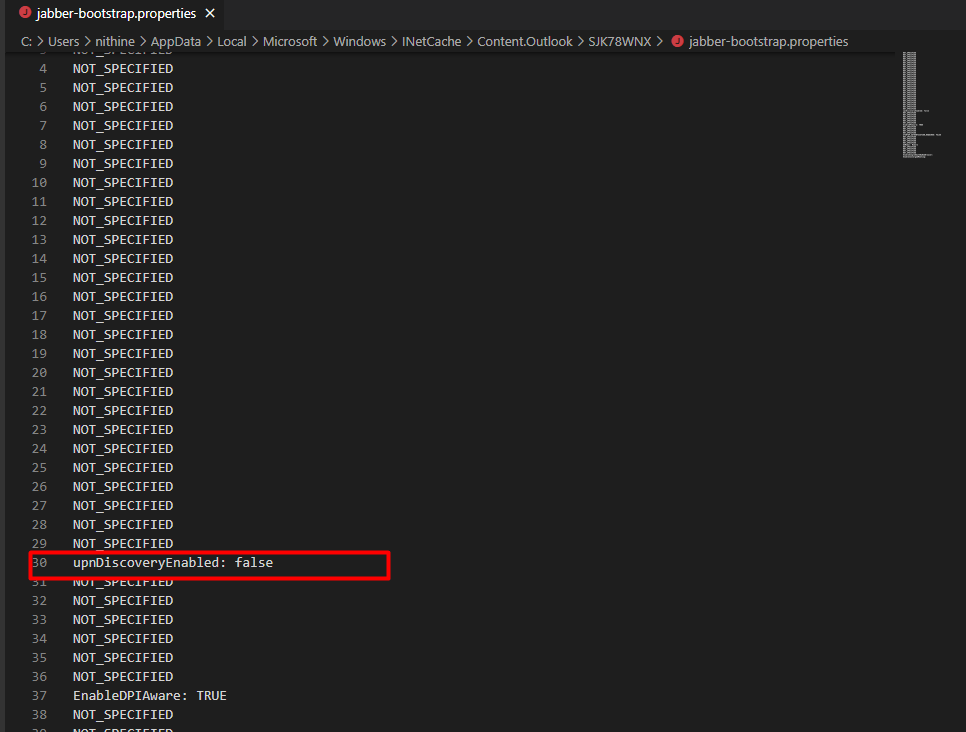
3) On line 30, replace this text ‘NOT_SPECIFIED’, with this text ‘upnDiscoveryEnabled: false’
4) If Jabber is running, sign out and click “Reset Jabber”.
5) Run Jabber again and confirm you can login.
You can download the sample file from the link below.
A sample file
 CRAZY NETWORKING