In this blog post, I will share how to convert Cisco Catalyst 9162, 9164, or 9166 Series Access Points from DNA management mode to Meraki mode. This is useful if you want to add these access points to your Meraki cloud management dashboard.
One of our customers faced an issue with their 9166 access point that they bought recently. They tried to add it to Meraki, but it did not work as expected. The reason was that the access point came in DNA management mode by default. To use it with Meraki, they had to change the management mode to Meraki.
To do this conversion, you need a Cisco 9800 Wireless Controller with IOS image XE 17.9.1 or later. You also need to make sure that the access point is on a regulatory domain that supports conversions. I initially had the regulatory domain set to OM (Oman), and the conversion failed. I changed it to IN (India), and it worked.
Here are the steps to perform the management mode migration:
- Log in to the wireless LAN controller.
- Go to Configure > Wireless > Migrate to Meraki Management Mode

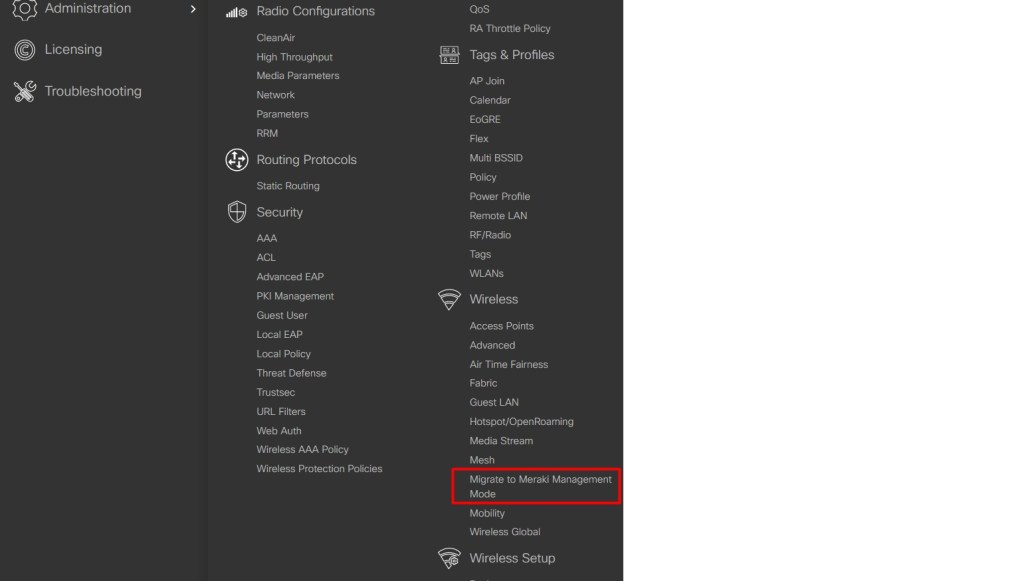
- Select all the access points that you want to migrate to Meraki mode.

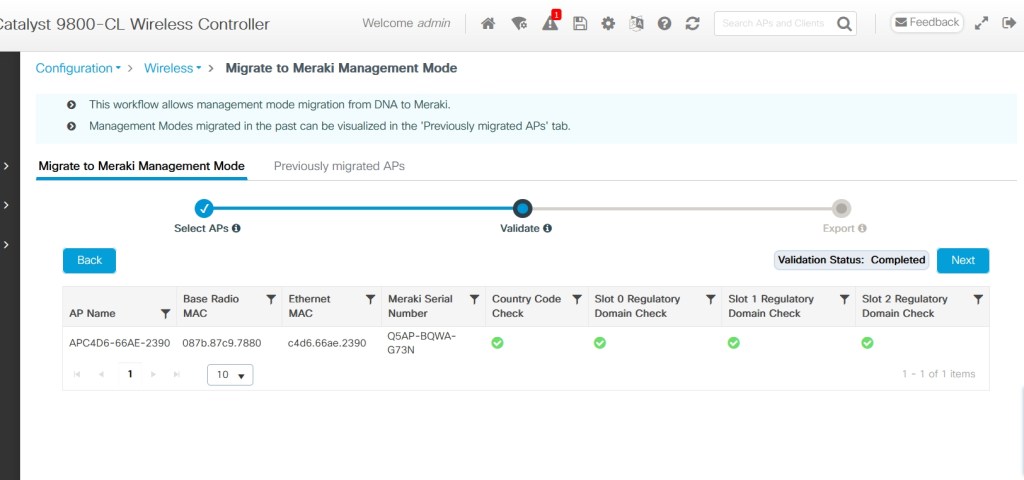
- Click Migrate to Meraki Management Mode and wait for the validation check. If all checks are green, click Next.
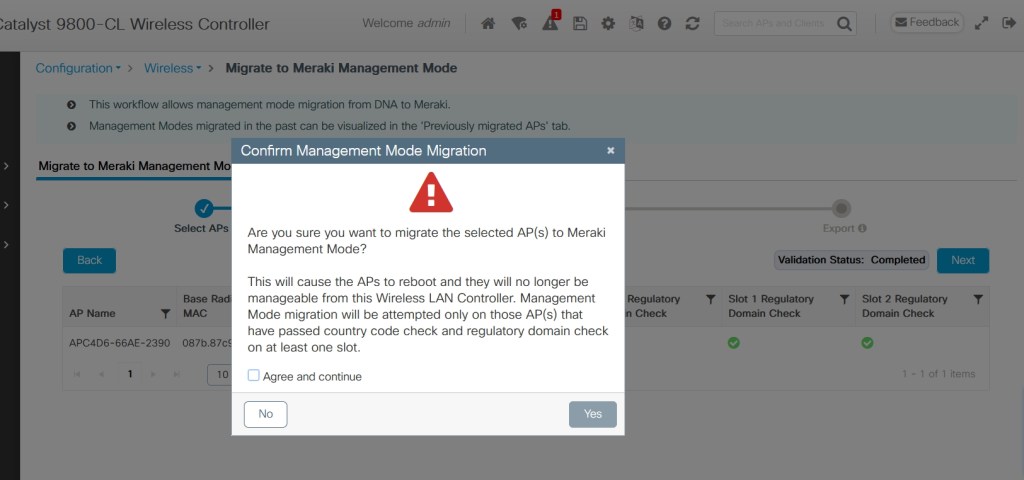
- Read the warning message, check Agree and continue, and click Yes to confirm the persona change.


- Export data in your preferred format. We recommend choosing Export to Meraki Dashboard, as this option will also preserve the access point names. You can download the data as a file or copy it. Please wait for two to three minutes before unplugging the access points from the PoE switch.
- Claim the access points in your Meraki cloud management organization.
A Few Reminders.
- You will lose console access when the access point switches to Meraki management mode.
- The management mode of the replacement access point will match the one you requested in the RMA case, even if it is different from the original access point’s mode. This applies to Cisco Catalyst 9162, 9164, or 9166 Series Access Points.
Let’s talk about the licenses and warranty next.
You might be wondering what will happen to your DNA licenses and whether you need to buy new ones for Meraki.
There are two options for getting Meraki licenses after you migrate your devices to the Meraki Dashboard: You can either buy new Meraki licenses OR get free Meraki licenses through the qualified promotion process (explained below).
Qualified promotion
The Meraki licenses will be similar to your current Cisco DNA Center license in terms of level and duration:
Level match:
- If you have Cisco DNA Premier or Advantage, you will get Meraki Advanced.
- If you have Cisco DNA Essentials, you will get Meraki Enterprise
Duration match:
- The Meraki license will last as long as or longer than your remaining Cisco DNA license and support contract.
For example, if your Cisco DNA license and support contract have 22 months left, you will get a 2-year (24-month) Meraki license.
What about your existing Cisco DNA licenses and support contracts?
They will be used as collateral for the free Meraki license, but they will not be changed or cancelled. You can still use them as before, even after the qualified promotion is applied.
 CRAZY NETWORKING